Introduction
In OneView, Events are automatically created every time an alert triggers. No additional setup is required.
When creating an alert, you can define a default Event priority. This priority will be applied to all Events generated by that alert.
-
-
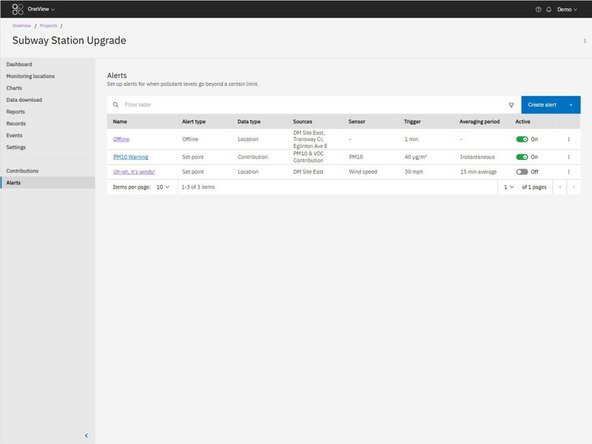
Navigate to Alerts in your OneView project.
-
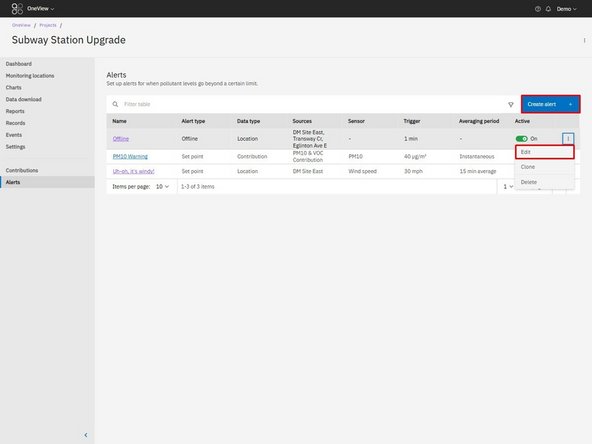
Click Create alert (or edit an existing alert).
-
Complete the Details and Trigger steps for your alert.
-
Proceed to the Actions step.
-
-
-
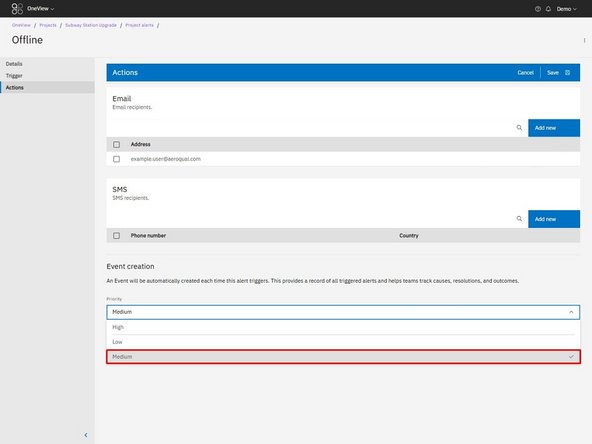
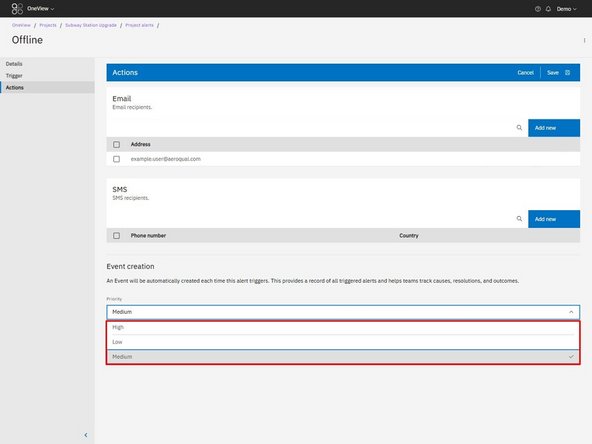
In the Actions step, select a default priority.
-
An Event will be created automatically every time the alert triggers.
-
This priority will be applied to every Event created by this alert.
-
The priority can be changed later on individual Events if required.
-
-
-
As a starting point we suggest users:
-
Use Low priority for early warning or informational alerts (e.g. well below regulatory action levels).
-
Use Medium priority for alerts that require attention but not immediate action.
-
Use High priority for alerts that trigger at or near regulatory or site action thresholds.
-
Choosing the right default priority makes it easier to sort and focus on the most important Events later.
-
-
-
When alert trigger conditions are met:
-
An Event is automatically created.
-
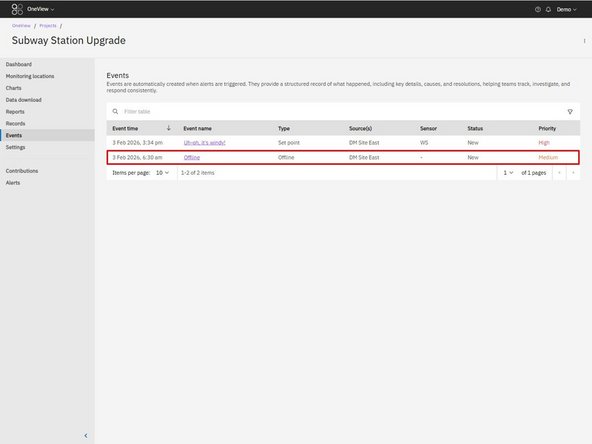
The Event appears in the Events table.
-
Email alert notifications include a link to the Event.
-
Note on SMS notifications: SMS alerts do not include a link to the Event. Links in SMS messages are often blocked by cellular providers to prevent scams. To ensure reliable delivery of important alerts, we do not include links in SMS notifications. Open OneView and navigate to Events to view the related Event.
-
For further support, contact Aeroqual Support.
For further support, contact Aeroqual Support.
