Introduction
Events can be updated throughout the investigation and response process.
Users with edit permissions can:
- update event priority and status
- add investigation notes
- upload supporting files and photos
- export Event PDFs
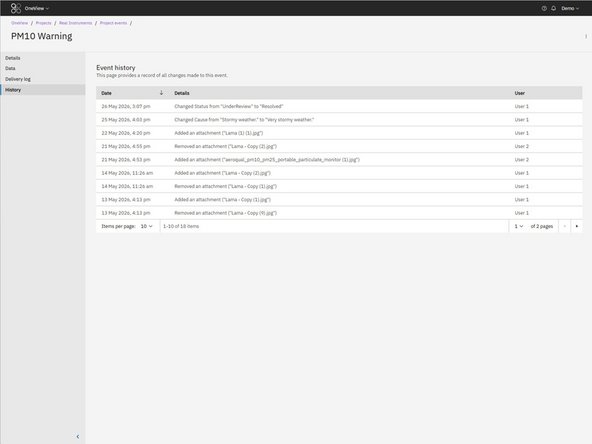
All changes made to an Event are recorded in the Event History tab.
-
-
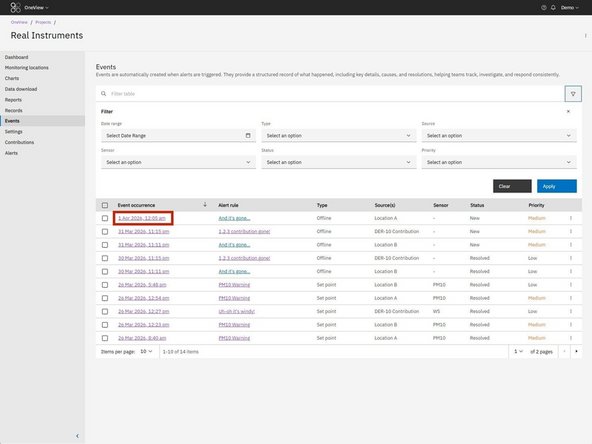
Open the Events table within your OneView project
-
Select an event to open, and open it by clicking on the timestamp in the Event occurrence column.
-
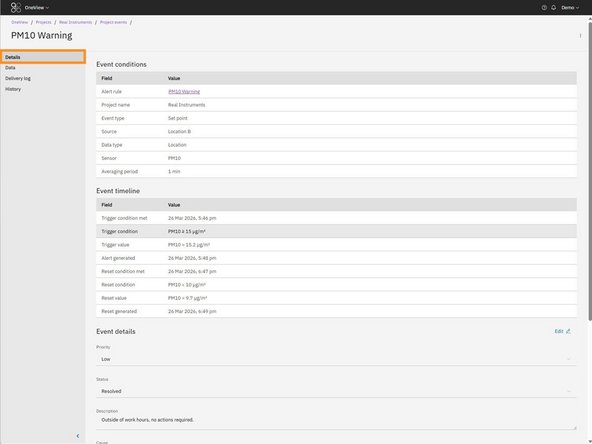
Event management features are available on the Details tab
-
-
-
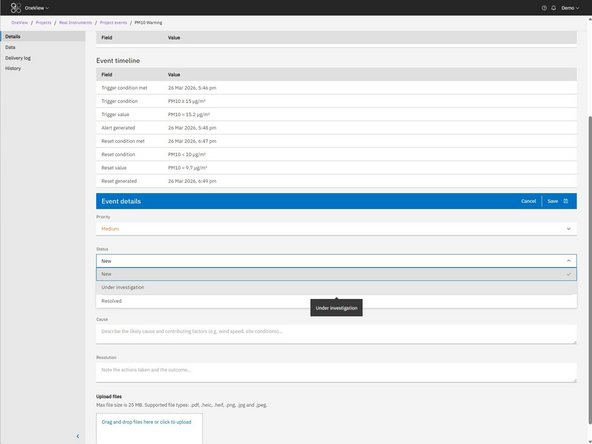
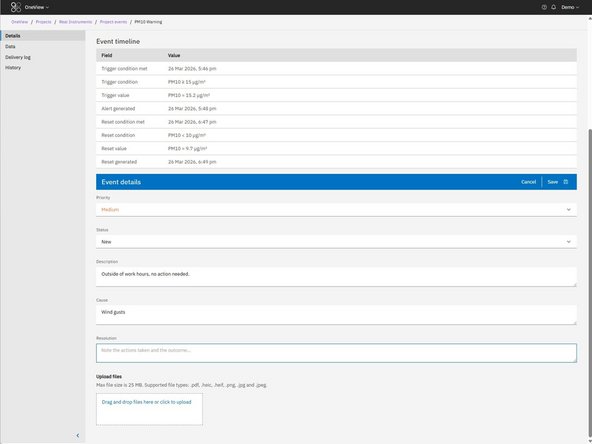
Use the Event Details section to update:
-
event priority
-
investigation status
-
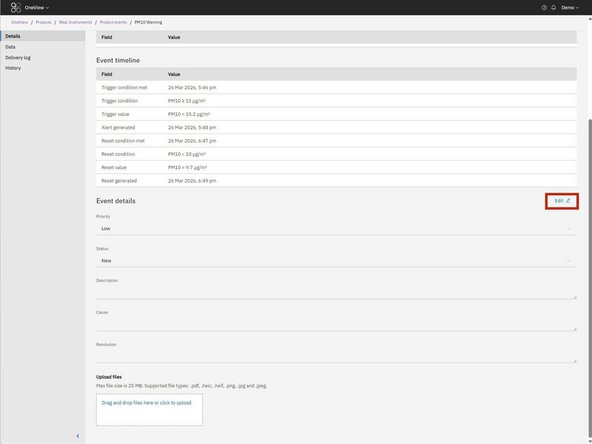
To edit these fields, click the Edit button next the Event details section heading. Once you're finished editing, click Save to store your changes.
-
These fields can be updated throughout the investigation process as conditions change. Changes made to these fields are recorded in the Event History tab.
-
-
-
You can also use the Event Details section to document information related to the event like adding a description, cause, or resolution.
-
Changes made to these fields are also recorded in the Event History tab.
-
-
-
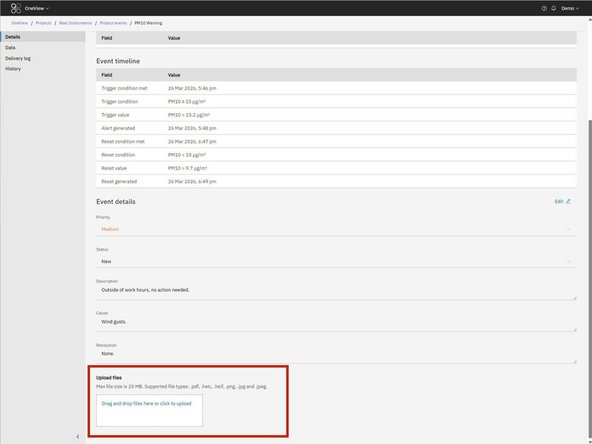
Use the Upload files section to add supporting files to an event.
-
Files can be uploaded by:
-
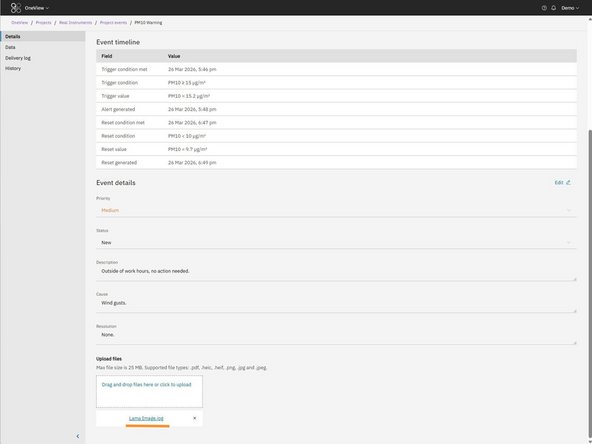
dragging and dropping files into the upload area
-
clicking the upload area to browse files manually
-
Uploaded files can be downloaded directly from the event by clicking the file name.
-
-
-
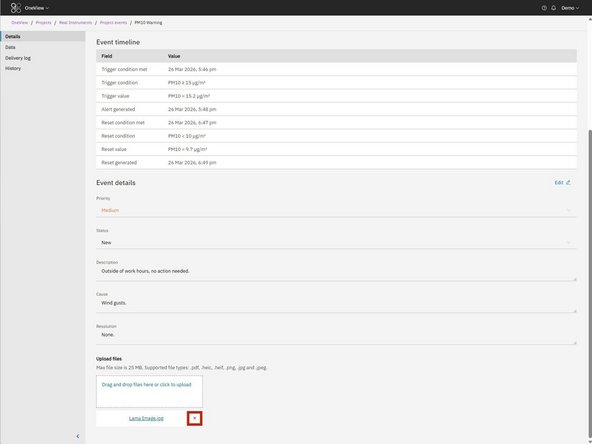
Uploaded files can be removed from the event using the remove control (x) beside the file name.
-
Removing an attachment updates the event immediately.
-
Attachment uploads and removals are recorded in the Event History tab.
-
-
-
Use the History tab to review changes made to the event over time.
-
History entries include:
-
timestamp
-
action performed
-
user
-
For further support, contact Aeroqual Support.
For further support, contact Aeroqual Support.
