Introduction
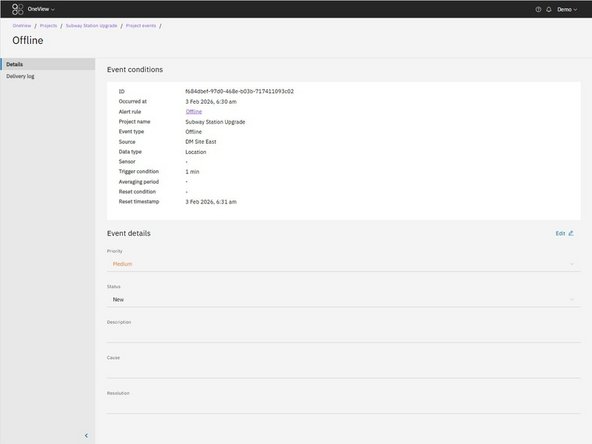
Events provide a structured place to document what happened after an alert was triggered. As investigation work progresses, you can update Event details to maintain a clear and consistent record.
-
-
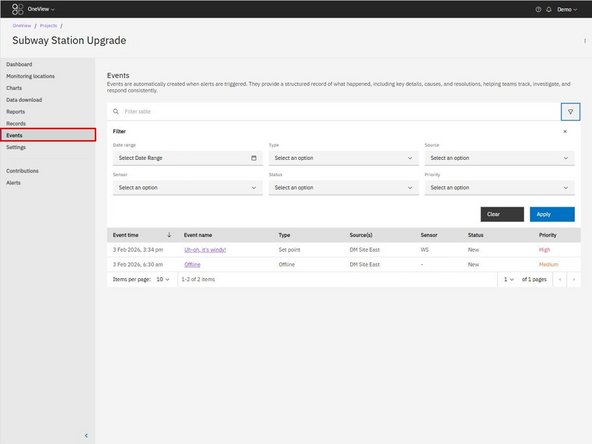
Click Events in the left-hand navigation.
-
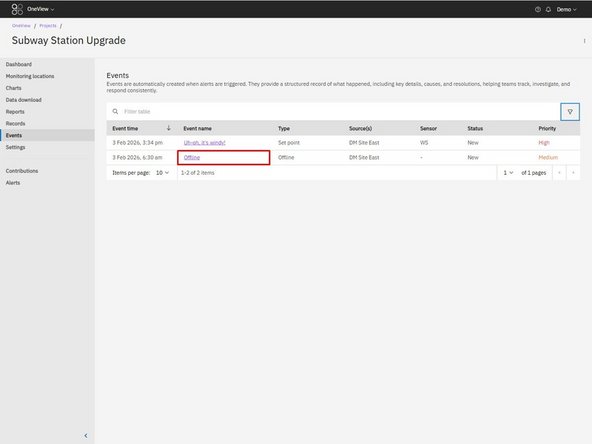
Click the Event name.
-
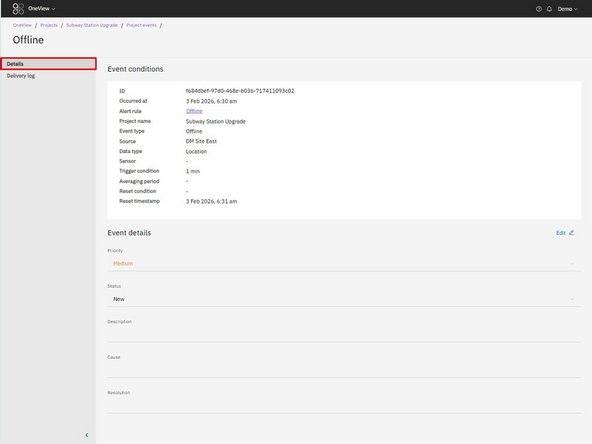
Ensure you are on the Details tab.
-
-
-
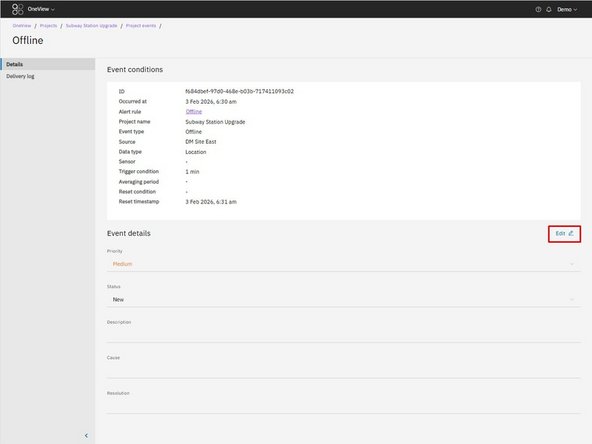
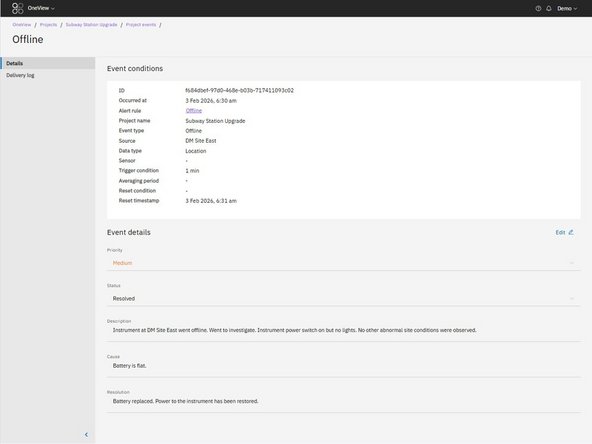
Click Edit in the top-right of the Event details section.
-
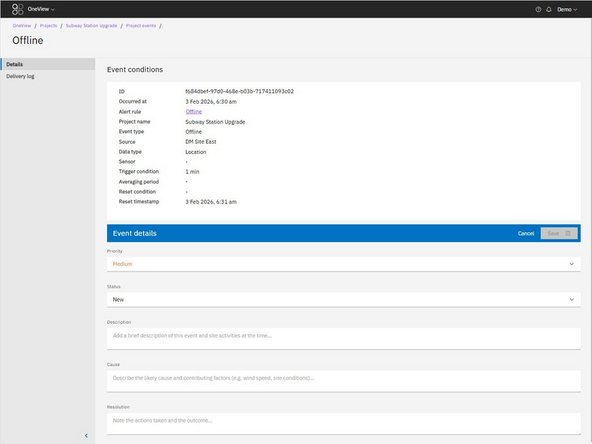
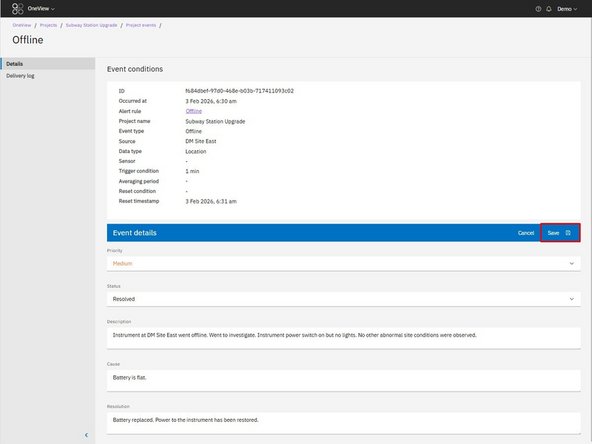
The editable fields will become active.
-
-
-
You can update the following fields:
-
Priority: Adjust if the importance changes.
-
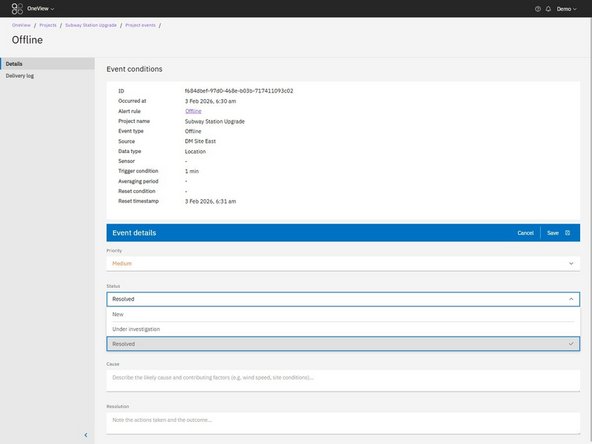
Status: Update as work progresses (e.g. New, Under Investigation, Resolved)
-
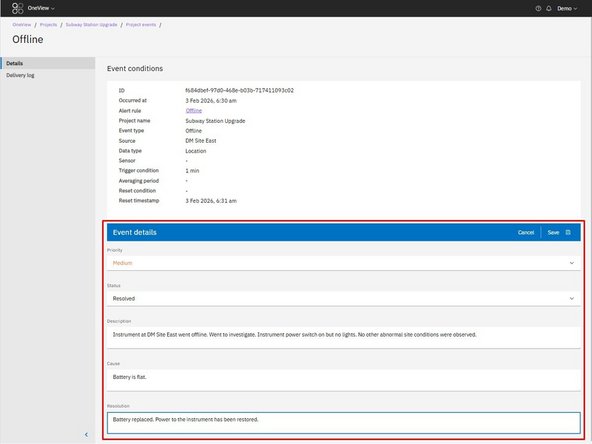
Description: Record what was observed
-
Cause: Document why the event occurred
-
Resolution: Record what action was taken and the outcome.
-
-
-
Click Save to apply your updates.
-
For further support, contact Aeroqual Support.
For further support, contact Aeroqual Support.
