Introduction
Zero calibration can be performed on all gas modules simultaneously because all gas modules are sampling the same zero air source.
It takes approximately 30 to 45 minutes for all of the modules to stabilize towards zero air, after which all offsets can be changed quickly, one after the other, and in any order, using either the Manual Entry or the Calibration areas of the Calibration and Service app.
Gas modules must be zero calibrated using zero air. N2 can’t be used.
We recommend you leave any failed modules running in the monitor throughout the zero and span calibration process. After you’ve calibrated the remaining modules, you can open the door to the monitor and remove the failed modules for inspection.
Tools

Parts
-
-
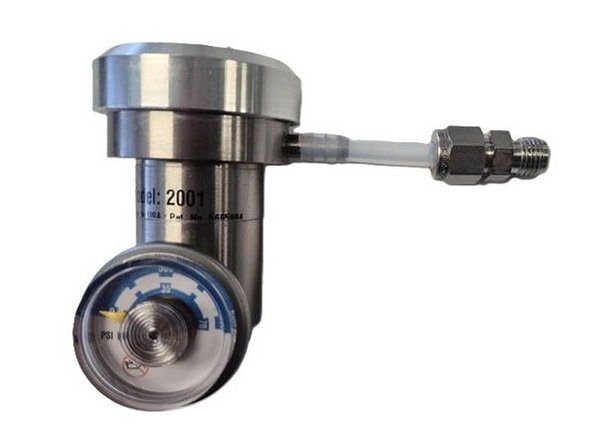
If not already fitted, connect 5cm of tubing with Swaglok union to your flow regulator.
-
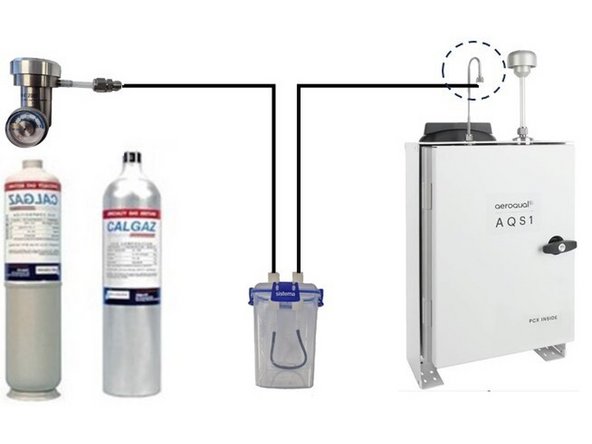
Connect your flow regulator to your zero gas cylinder.
-
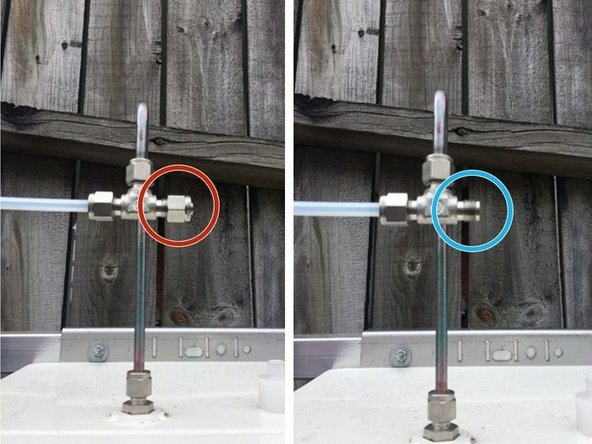
Remove the Kynar fitting (inlet mesh filter) from the monitor’s gas inlet.
-
Connect the 3-way tee to the inlet.
-
Add 17oz(500ml) of water to the humidifier.
-
Connect the two lengths of ¼” Teflon tubing to the humidifier. One tube goes to the flow regulator, the other to the tee.
-
If you’re using a demand flow regulator, close (cap) the other side of the tee.
-
If you’re using a fixed or adjustable flow regulator, add a metre or more of tubing to the other side of the tee to exhaust the excess gas away from you.
-
-
-
Start supplying the zero air to the instrument. For fixed and variable regulators make sure excess flow is coming out of the exhaust tubing.
-
Wait 30 to 40 minutes for the module readings to stabilize.
-
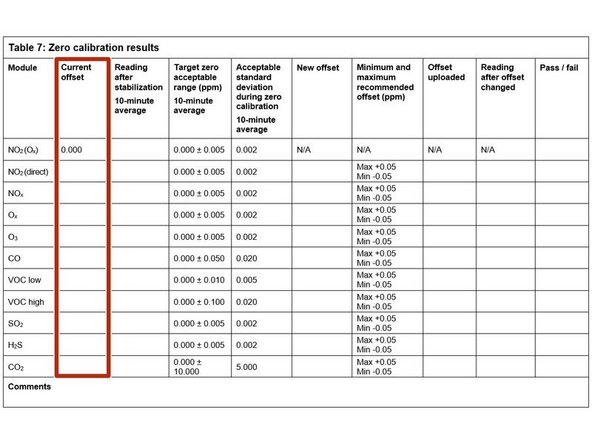
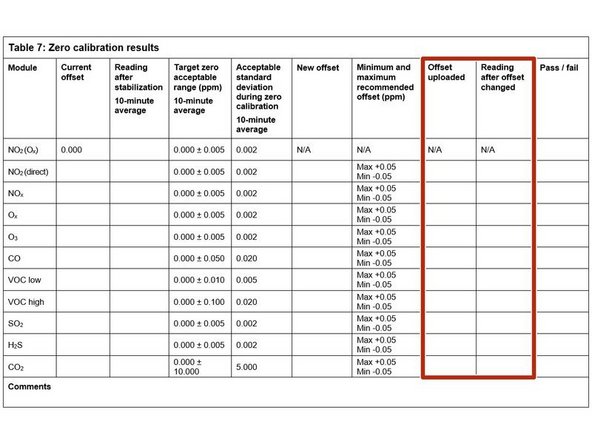
While waiting for the readings to stabilise, record the Current offset for each of your gas modules in the Current offset column in table 7 of the calibration table.
-
-
-
To determine if the readings have stabilized:
-
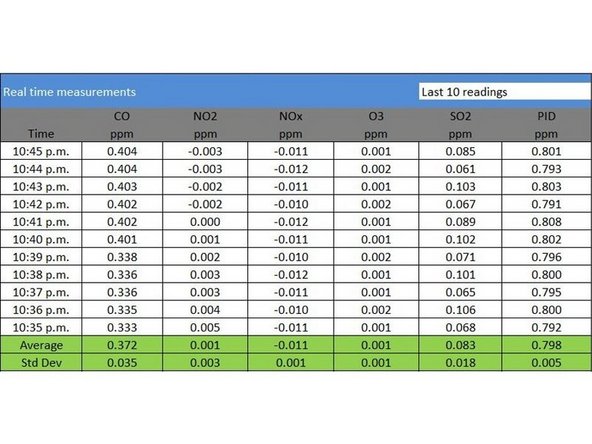
Look at the standard deviation over a ten-minute period in the Manual Entry (shown) or Calibration areas of the Calibration and Service page.
-
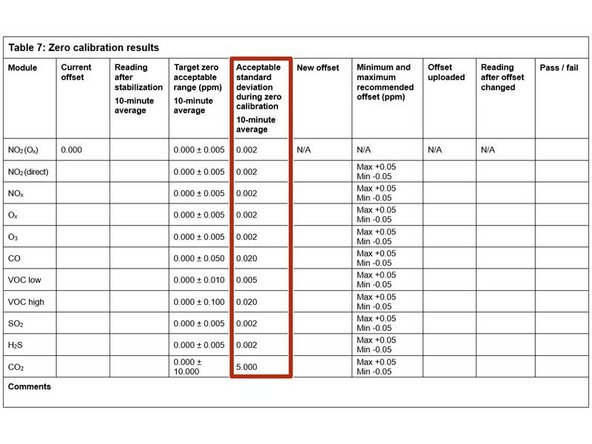
Check if they fall within the acceptable range listed in the Acceptable standard deviation during zero calibration column of your calibration table.
-
To be regarded as stable, the readings must not be increasing or decreasing, and must be within the acceptable range.
-
If the values don’t stabilize, write fail in the Pass / Fail column and move on to next module.
-
-
-
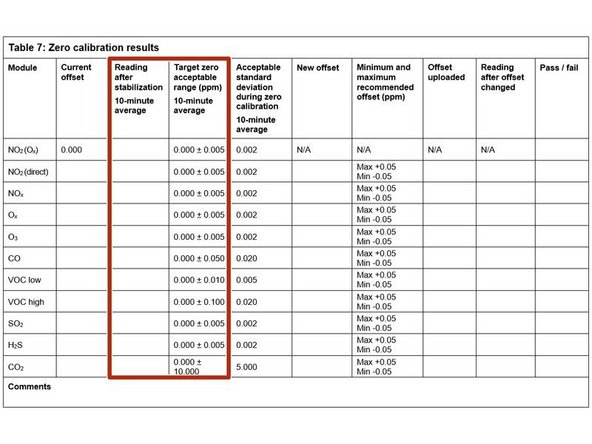
Record the stabilized reading from the 10-minute average in the Reading after stabilization column.
-
If the stabilized value is within the accepted range (see Target zero acceptable range column), no offset adjustment is required. Write pass in the Pass / fail column and move on to next module.
-
If the stabilized value is outside the accepted range, you need to make an offset adjustment.
-
-
-
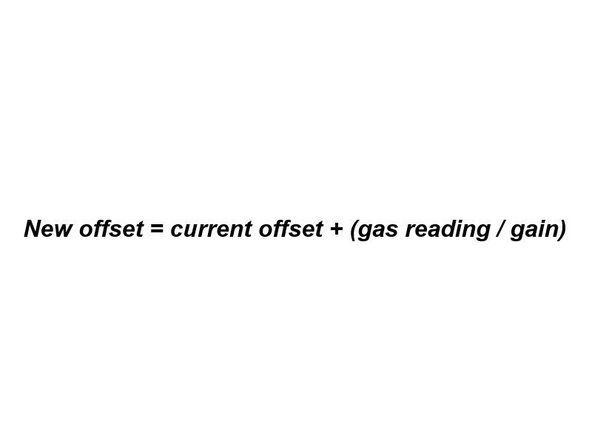
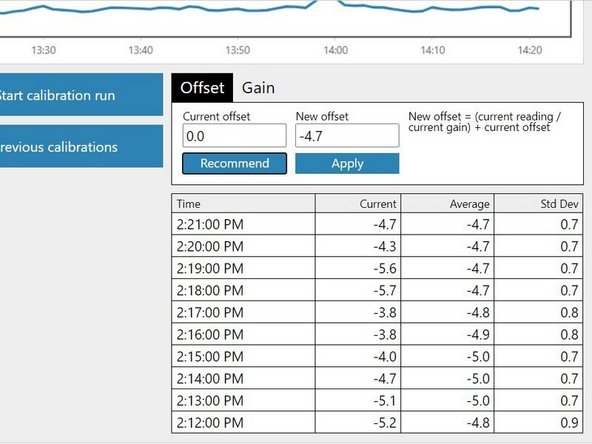
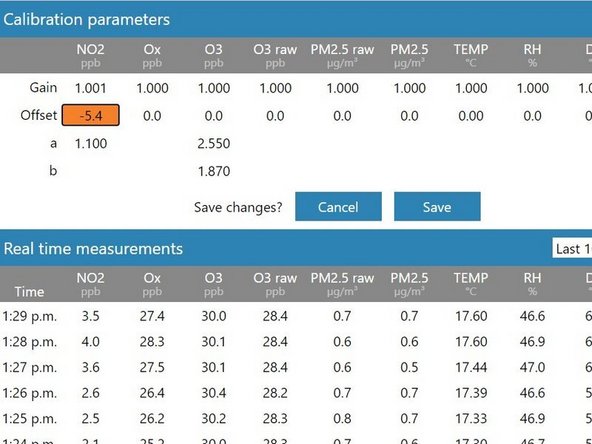
If you're using the Manual Entry area to upload offset adjustments, you need to calculate your new offset using the equation shown.
-
To make the calculation, you need to know the module's:
-
Current offset
-
Current gain
-
10-minute average reading.
-
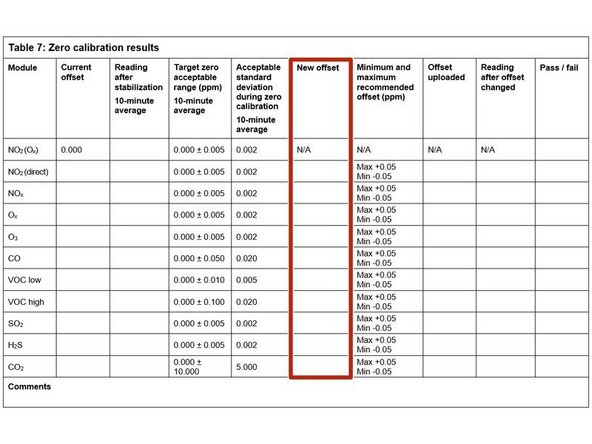
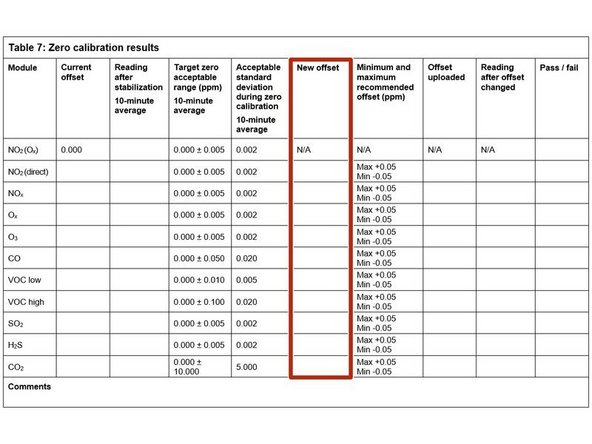
Record the calculated offset in the New offset column.
-
-
-
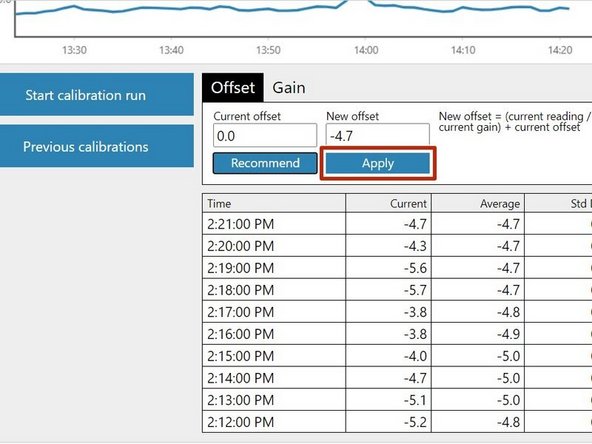
If you're using the automated process in the Calibration area to upload offset adjustments, select the correct gas channel and click the Recommend button to calculate the offset for your selected gas.
-
Record the calculated offset in the New offset column.
-
-
-
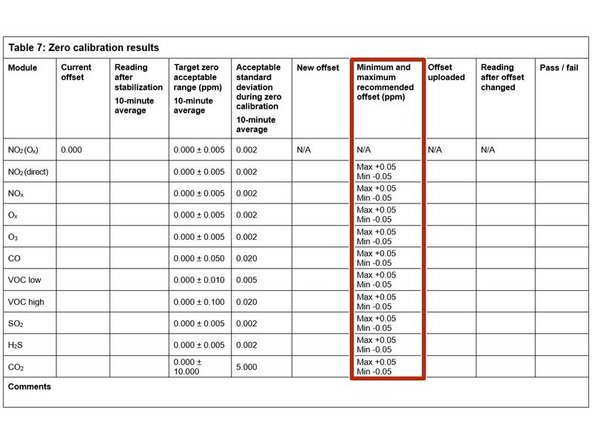
If the new offset is within the accepted range (see the Minimum and maximum recommended offset column), you can upload your new offset.
-
If you're using the Manual Entry area, click the appropriate cell, type in the new value and click Save.
-
If you're using the Calibration area, simply click the Apply button.
-
If the new offset is outside the accepted range, don’t upload the offset. Write fail in the Pass / fail column and move on to next module.
-
-
-
Record the offset you uploaded in the Offset uploaded column.
-
Wait 2 or 3 minutes then record the current reading in the Reading after offset changed column.
-
Confirm the reading is within acceptable limits. If yes, write pass in the Pass / fail column. If not, write fail.
-
Move on to next module.
-
-
-
There may be times when either the module doesn’t stabilize, or a very large positive or negative offset is calculated. Make a note of this in the journal and then carry on with the rest of the zero calibration. Don’t open the door to check the module because this causes temperature instability.
-
The journal automatically records any changes you apply to the offset so you don't need to make any manual entries.
-

For further support, contact Aeroqual Support.
For further support, contact Aeroqual Support.
Cancel: I did not complete this guide.
One other person completed this guide.
