Introduction
Use this guide to set up text and email alerts for an instrument in Aeroqual Cloud.
The alert creation experience has been redesigned to give you more control, clearer notifications, and fewer unnecessary interruptions. Alerts now have names, making it easier to identify exactly which condition has triggered. You can define when alerts are active (by day of week and time of day), helping reduce after-hours noise and ensuring notifications are sent only when you want them.
Offline alerts are more intelligent, allowing you to set how long a monitor must be offline before triggering preventing short communication dropouts from generating unnecessary messages.
Alerts can also be toggled on and off at any time, so you can temporarily disable them without deleting your configuration.
Use alerts to:
- Notify your team when pollution levels exceed a defined limit
- Monitor instrument or communication status
- Stay informed about site compliance in real time
-
-
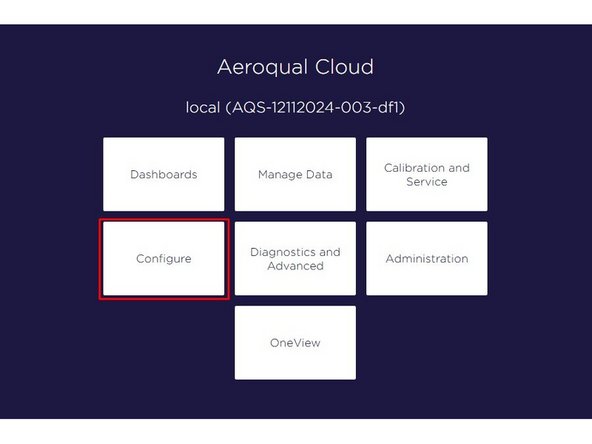
From the Aeroqual Cloud home screen, select Configure.
-
-
-
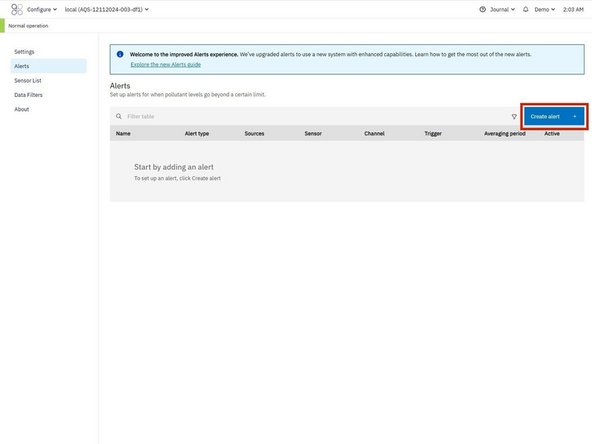
Click Alerts in the side navigation menu.
-
This page lists all existing alerts set up on your instrument.
-
Click Create Alert.
-
-
-
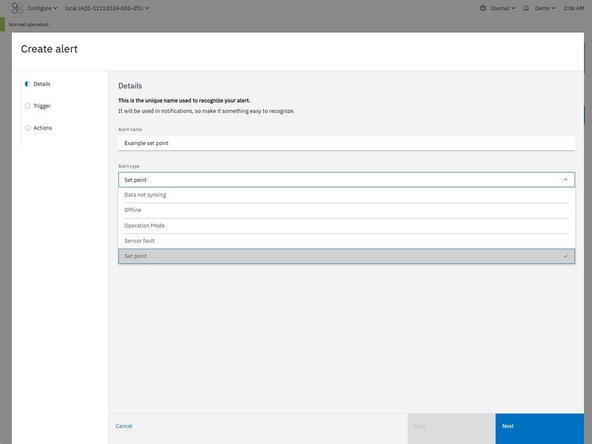
Alert Name: Type a name that will appear in notifications. Make it clear and easy to recognize.
-
Select the Alert type:
-
Data not syncing: Triggered when instrument data is not syncing with Aeroqual Cloud.
-
Offline: Triggers when the insturment goes offline (i.e. loses connection to Aeroqual Cloud).
-
Operation Mode: Triggers when the instrument's operation mode changes (i.e. Sample mode -> Service mode)
-
Sensor fault: Triggers when a sensor in the instrument reports that it has failed or is no longer functioning correctly.
-
Set point: Triggers when a parameter exceeds or falls below a set value.
-
-
-
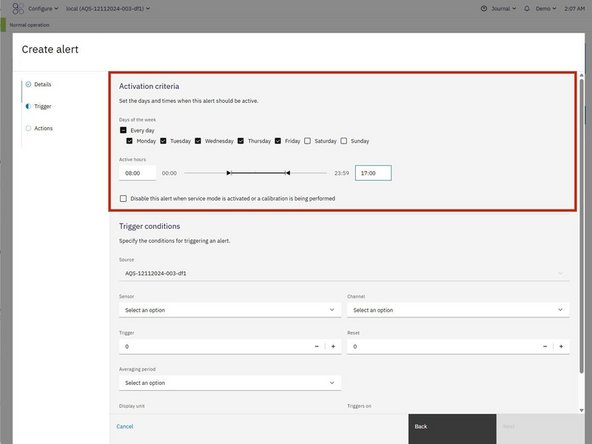
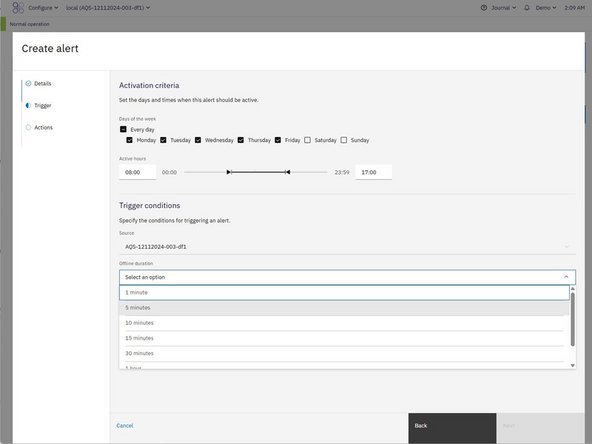
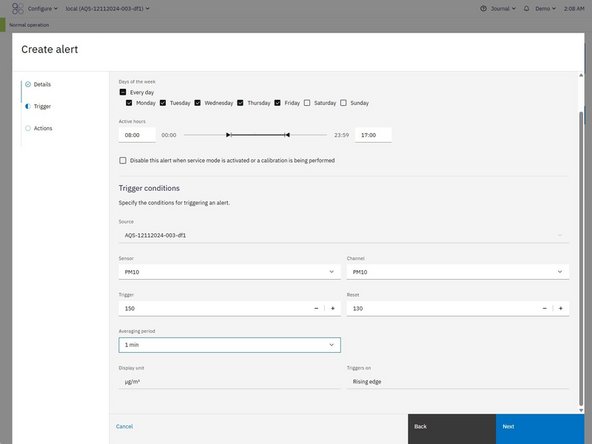
Choose the days of the week this alert should be active.
-
Set the active hours during each day (e.g. 08:00 to 17:00).
-
These settings determine when the alert will monitor for the trigger conditions.
-
-
-
If you selected Offline as the alert type:
-
Offline duration: Set how long the istrument must be offline before the alert triggers.
-
-
-
If you selected Set point as the alert type:
-
Sensor: Select the parameter you want the alert to trigger off (e.g. PM10, wind speed).
-
Channel: Select the channel that you want the alert to trigger off (e.g. PM10, run-time)
-
Trigger and Reset: The trigger is the value that, once crossed, will activate the alert. The reset is the value the measurement must return to before the alert can trigger again. This helps avoid repeated alerts while the measurement fluctuates around the threshold.
-
Triggers on: Automatically determined based on your trigger and reset values. For example: Rising edge if the trigger is higher than the reset (e.g. wind speed exceeds 15 mph, resets at 10 mph). Falling edge if the trigger is lower than the reset (e.g. battery voltage drops below 11 V, resets at 12 V).
-
Display unit: Shown automatically based on the selected channel.
-
-
-
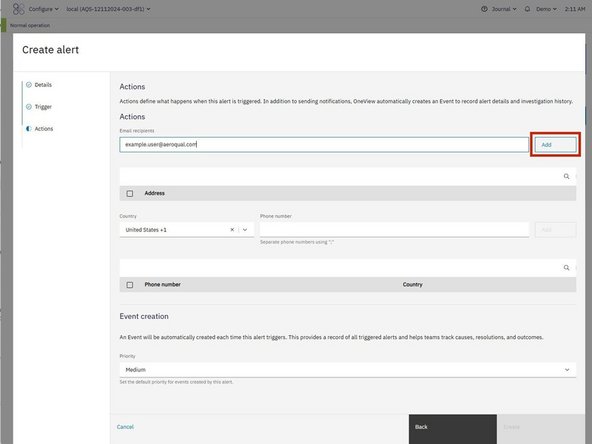
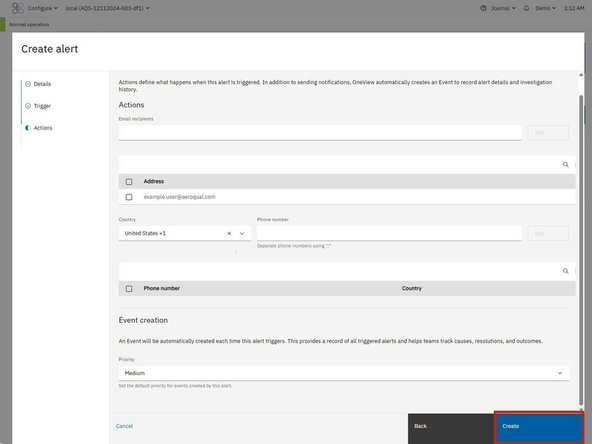
In the Email section:
-
Enter one or more email addresses. Separate multiple addresses with semicolons (;).
-
Click Add to include the specified addresses as recipients for the alert.
-
In the Phone Number section:
-
Select the appropriate country code.
-
Enter one or more phone numbers for SMS notifications. Separate multiple numbers that share the same country code with a semicolon (;).
-
Click Add to include the specified numbers as recipients for the alert.
-
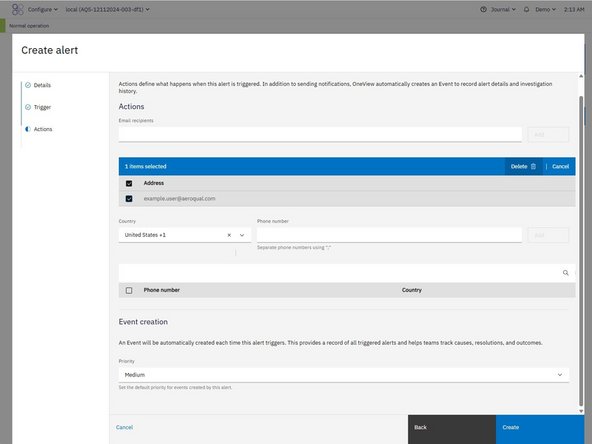
To remove a recipient, select the checkbox next to their entry and click Delete. Repeat as needed to remove multiple recipients.
-
-
-
Click Create to finish setup.
-
The new alert will appear in the Alerts table.
-
You can toggle it on or off directly from the table at any time.
-
For further support, contact Aeroqual Support.
For further support, contact Aeroqual Support.
