Introduction
Events provide contextual information related to alerts triggered in OneView.
Each Event contains information to help users review:
- what triggered the event
- when the event occured
- associated monitoring data
- notification delivery history
- event updates and attachments
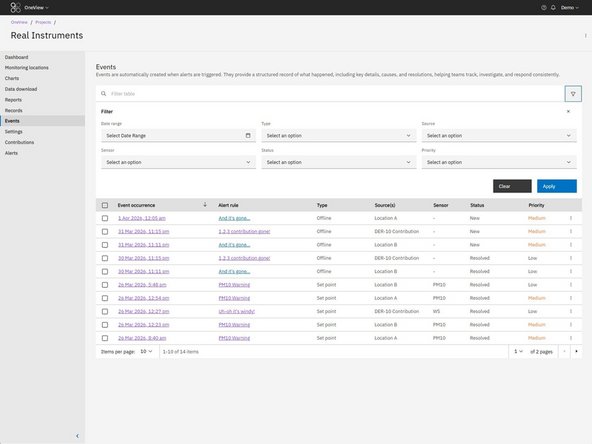
Events are accessed from the Events table within a OneView project.
-
-
Open your project in OneView
-
Navigate to Events from the project side navigation menu
-
The Events table displays all events associated with the project
-
The table supports filtering, sorting, and searching
-
-
-
Select an event from the Events table to open the Event Details page
-
Use the left-hand navigation menu to move between sections of the event
-
The following sections may be available:
-
Details
-
Data
-
Delivery log
-
History
-
-
-
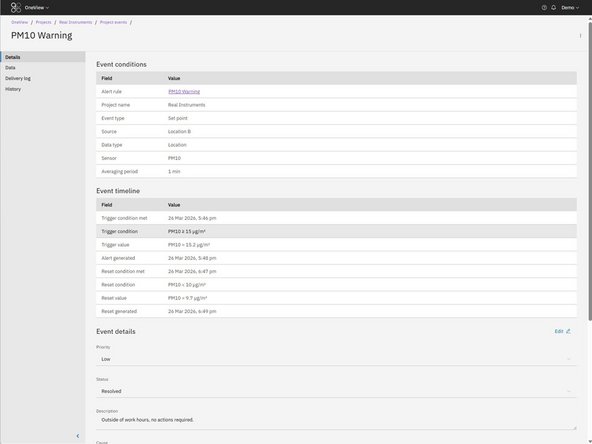
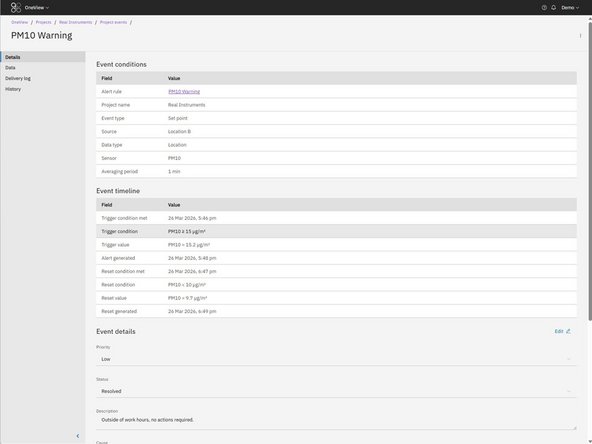
The Event Conditions section provides information about the alert that created the event.
-
Clicking the Alert rule hyperlink will take you to the alert that created the event.
-
The Event Timeline section provides a record of when the event occurred and when notifications were generated.
-
-
-
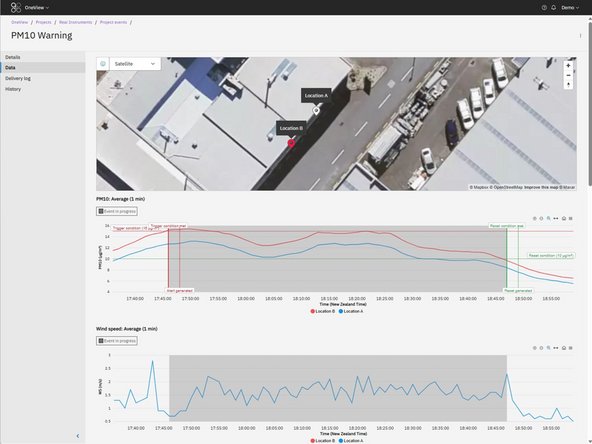
The Data tab provides contextual monitoring data associated with the event. Depending on the event type, this may include:
-
monitoring location maps
-
pollutant and environmental data charts
-
battery voltage data charts
-
The alert chart will also include annotations showing:
-
trigger threshold
-
reset threshold
-
event timeline markers
-
-
-
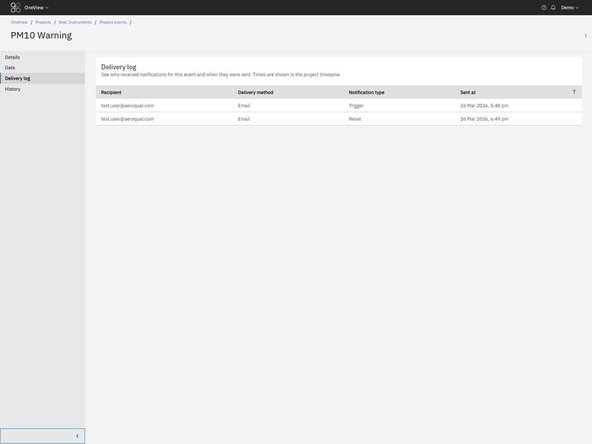
The Delivery log tab displays the notification delivery history for the event.
-
-
-
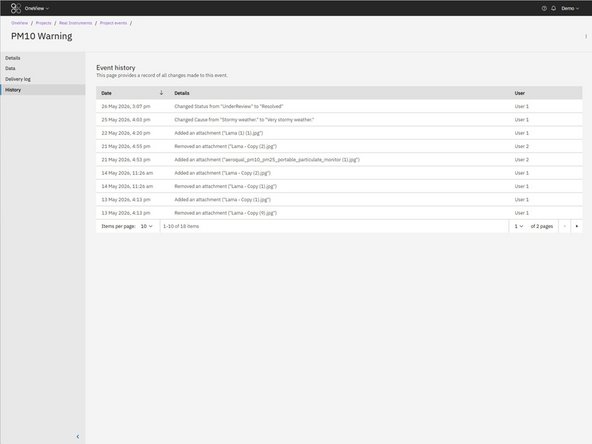
The History tab provides an audit history of changes made to the event.
-
This includes:
-
status and priority updates
-
attachment uploads and removals
-
updates to event details
-
For further support, contact Aeroqual Support.
For further support, contact Aeroqual Support.
