Introduction
The Events page provides a complete list of all Events that have occurred on your project. Events are listed in chronological order and can be opened to review trigger details and investigation notes.
-
-
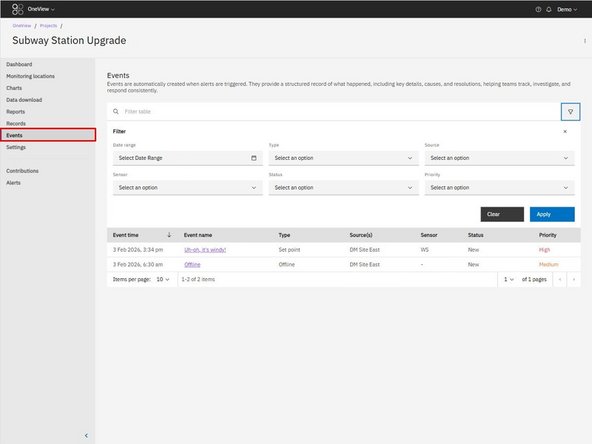
Click Events in the left-hand navigation.
-
The Events table displays a list of all Events for the project.
-
Events are listed from newest to oldest by default.
-
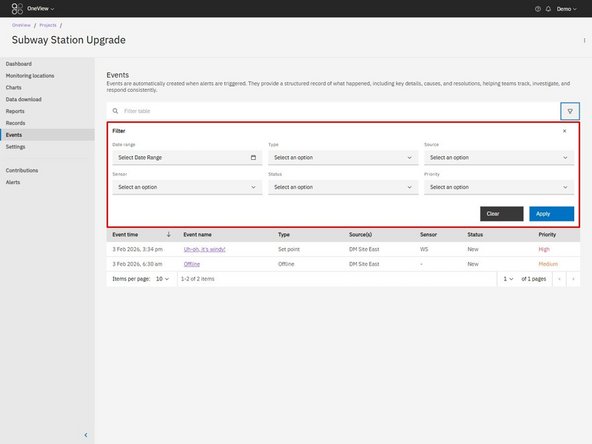
You can filter or sort the table as needed.
-
-
-
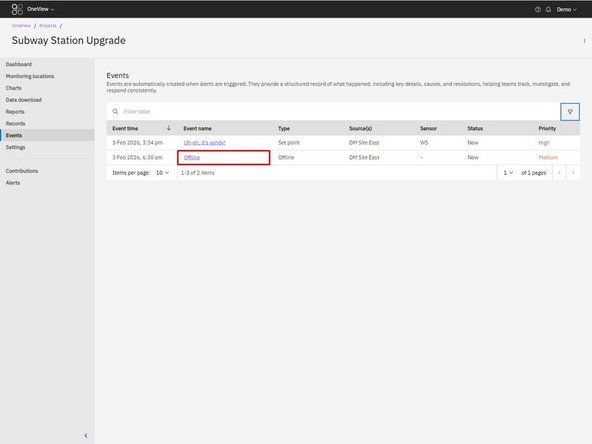
Click the Event name to open it.
-
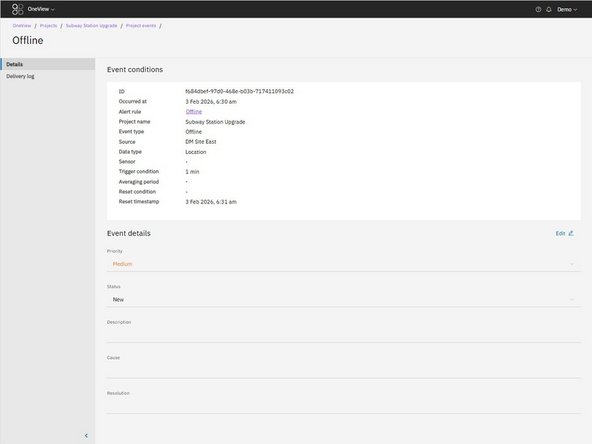
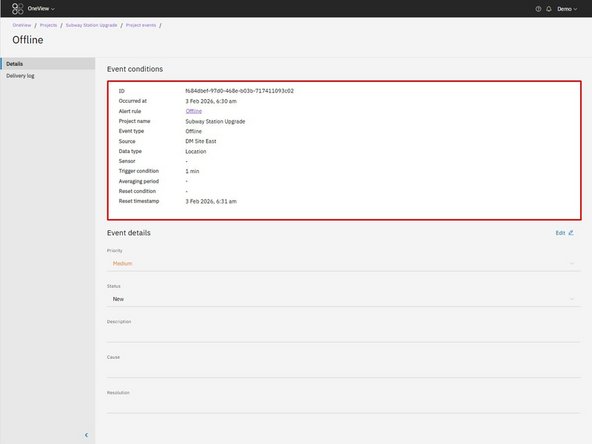
This opens the individual Event. This displays detailed information about the alert trigger and other associated data.
-
-
-
The Event conditions section shows:
-
When the Event occurred
-
The alert rule that triggered it
-
Project and source information
-
Trigger condition and averaging period
-
Reset condition and reset timestamp (if applicable)
-
This information reflects the alert configuration and site conditions at the time the Event was created.
-
-
-
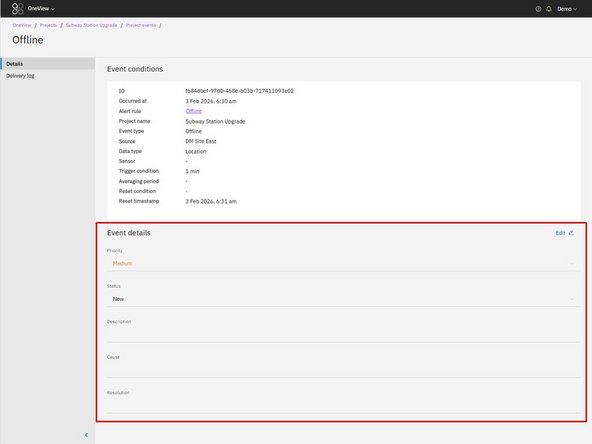
Below the Event conditions, the Event details section shows:
-
Priority
-
Status
-
Description
-
Cause
-
Resolution
-
These fields may be updated as the investigation progresses.
-
-
-
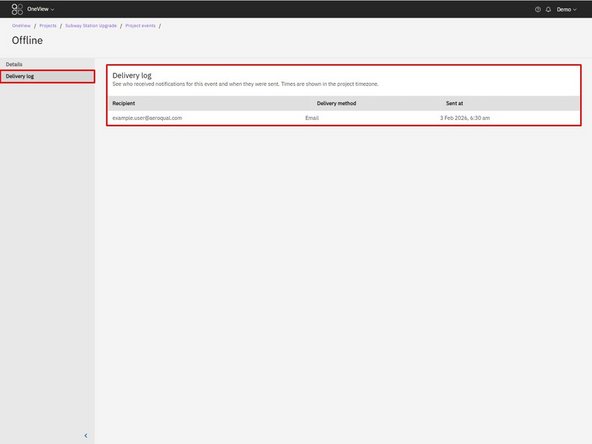
Click the Delivery log tab in the Event side navigation.
-
The Delivery log shows:
-
Who received the alert notification
-
How it was delivered (e.g. email or SMS)
-
When it was sent
-
This provides a clear audit trail of alert notifications.
-
Note: The Delivery log confirms that a notification was sent from OneView. It does not confirm that the message was successfully delivered, as email or SMS providers may block or filter messages.
-
For further support, contact Aeroqual Support.
For further support, contact Aeroqual Support.
